On an HP computer running Windows, press Windows + Shift + S to capture part of the screen. Use Windows + PrtScn to save the whole screen or Alt + PrtScn to copy the active window.
The Print Screen key may be labeled PrtSc, PrtScn, Print Scr, or Print Screen. On a compact HP keyboard, it can share a key with another command. Add Fn if the shortcut does not respond.
Below are seven ways to take a screenshot on an HP laptop or desktop, along with the correct save locations and quick fixes for common problems.
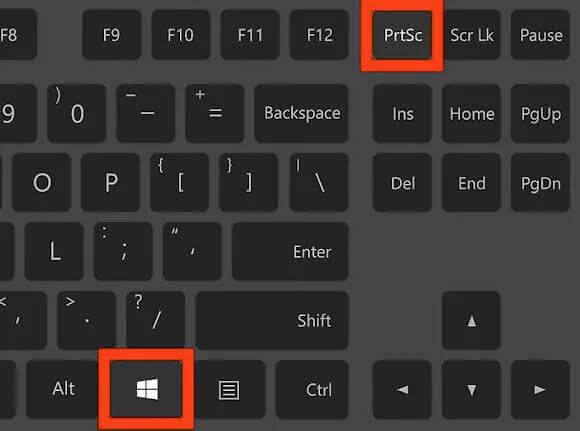
1. Copy the Whole Screen with PrtScn
PrtScn copies everything visible on your displays to the clipboard.
- Press
PrtScn. If nothing happens, tryFn + PrtScn. - Open Paint, Word, an email, or another app that accepts images.
- Press
Ctrl + Vto paste the capture. - Save the image if needed.
Some Windows setups use PrtScn to open Snipping Tool instead. You can change this behavior in the Windows keyboard accessibility settings.
2. Save the Whole Screen as a File
Press Windows + PrtScn to capture the full screen and save it automatically. On an HP laptop that uses secondary key functions, press Windows + Fn + PrtScn.
The screen may dim for a moment. Find the image in:
Pictures > Screenshots
If OneDrive backs up your Pictures folder, check:
OneDrive > Pictures > Screenshots
This shortcut is useful when taking several screenshots because there is no need to paste each one into Paint.
3. Capture One Active Window
Use Alt + PrtScn when you want one app or dialog box without the desktop and taskbar.
- Click the window you want to capture.
- Press
Alt + PrtScn, orAlt + Fn + PrtScnif required. - Paste the image with
Ctrl + V. - Save it from the destination app.
This shortcut copies the image rather than creating a file.
4. Take a Partial Screenshot
Windows + Shift + S is the quickest option for capturing a selected area.
- Press
Windows + Shift + S. - Choose rectangular, free-form, window, or full-screen capture.
- Select the area or window.
- Open the preview notification.
- Crop, annotate, or save the screenshot.
Current Windows 11 versions can save Snipping Tool captures automatically. On other setups, the image remains on the clipboard until you save it.
See How to Take a Partial or Full Screenshot on Windows for a closer look at each capture mode.
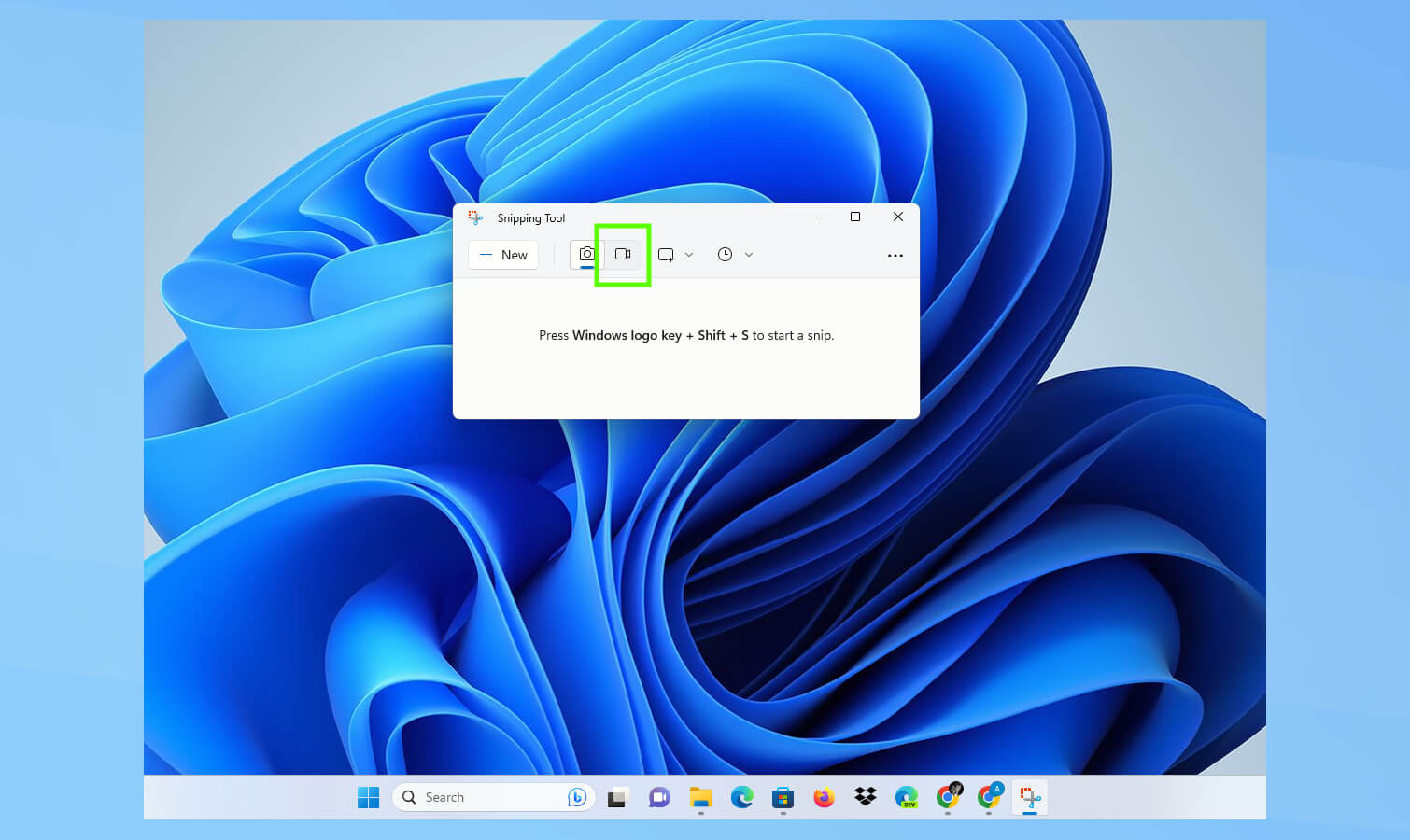
5. Use Snipping Tool for a Delayed Capture
A short delay helps capture menus, tooltips, and dropdowns that close when you click elsewhere.
- Search for
Snipping Toolfrom the Start menu. - Open the app and choose a capture mode.
- Set a delay.
- Select New, then open the menu you need before the timer ends.
- Capture and save the image.
The controls can differ slightly between Windows versions. If the delay or editing tools are missing, update Snipping Tool through Microsoft Store.
6. Screenshot a Game with Xbox Game Bar
For a game or supported app, press Windows + G and select the camera button in the Capture panel. The direct shortcut is Windows + Alt + PrtScn.
Game Bar saves screenshots in:
Videos > Captures
It may not capture the Windows desktop, File Explorer, or protected apps. Use Snipping Tool in those cases.
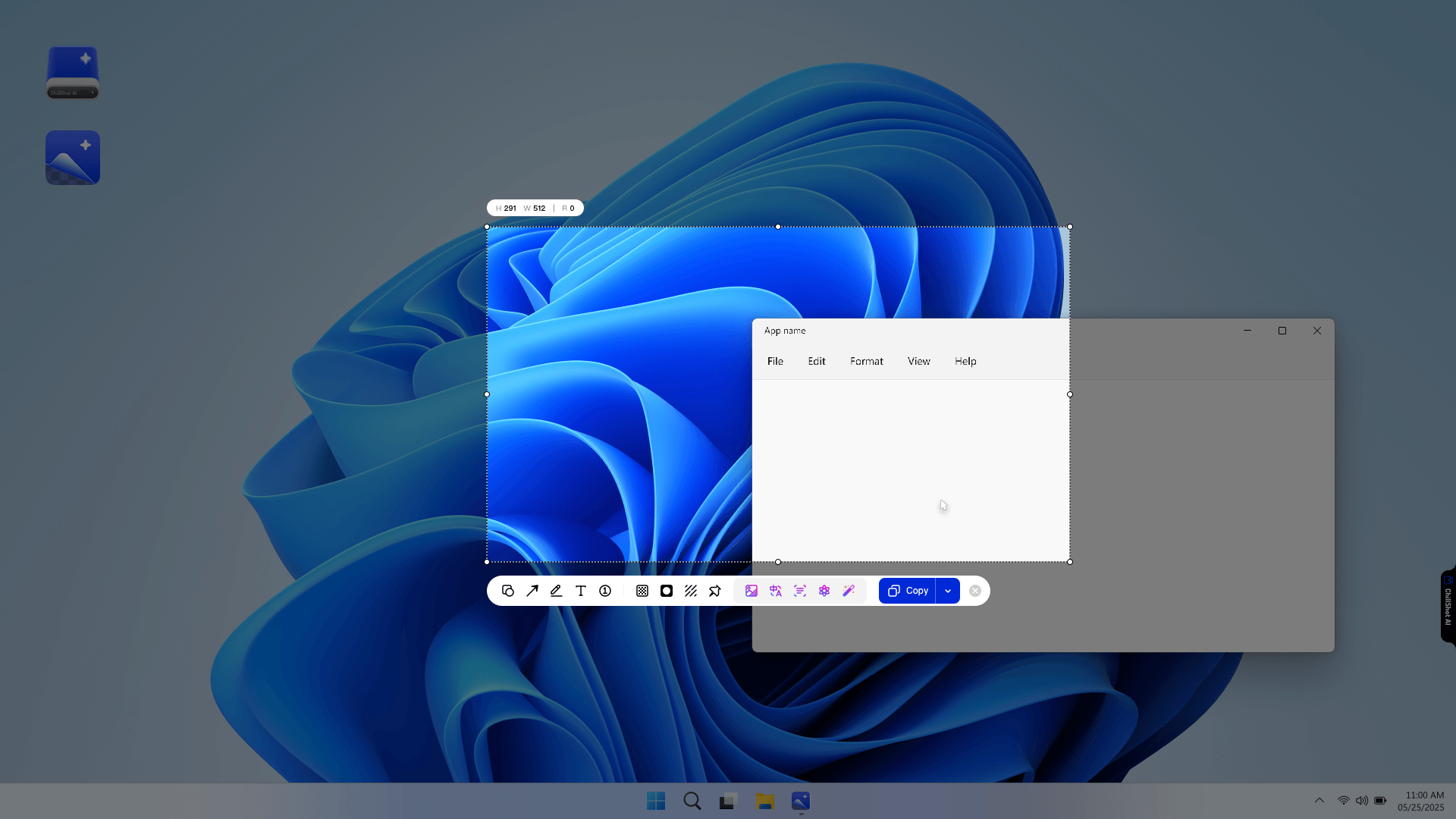
7. Capture and Edit with ChillShot AI
Windows shortcuts cover basic screenshots. ChillShot AI is useful when the same task also needs a long capture, annotation, blur, pinning, recording, or text extraction.
- Open ChillShot AI and choose Screenshot.
- Select the screen, window, or custom area.
- Complete the capture.
- Add text, arrows, shapes, blur, or pixelation if needed.
- Save the image.
For a webpage, chat, or document that extends below the screen, use Scrollshot instead of joining several images by hand. Read How to Take a Scrolling Screenshot for browser and desktop options.
ChillShot AI also includes OCR, image translation, visual Q&A, and AI image editing. Those AI features require an internet connection. Basic capture, annotation, pinning, and recording can work offline according to the current ChillShot AI FAQ.
How to Screenshot on an HP Chromebook
An HP Chromebook uses ChromeOS, so the Windows shortcuts above do not apply.
Press the Screenshot key if the keyboard has one. Otherwise, select the time in the lower-right corner and choose Screen capture. You can also press Shift + Ctrl + Show windows to open the capture toolbar.
Choose a full-screen, partial, or window capture. With an external keyboard that lacks the Show windows key, Google lists Ctrl + Shift + F5 as an alternative.
ChillShot AI instructions in this guide do not apply to ChromeOS.
If the HP Screenshot Shortcut Is Not Working
Try these checks before reinstalling anything.
Add the Fn Key
Print Screen is a secondary function on some HP laptops. Add Fn to the shortcut, such as Fn + PrtScn or Windows + Fn + PrtScn.
Check the Clipboard
The screenshot may have been copied without being saved. Open Paint and press Ctrl + V. If clipboard history is enabled, Windows + V can also show the latest capture.
Look in the Right Folder
Pictures > Screenshotsfor Windows screenshotsOneDrive > Pictures > Screenshotswhen Pictures is backed upVideos > Capturesfor Xbox Game Bar
Open Snipping Tool Manually
Search for Snipping Tool and select New. If this works, the problem is likely the keyboard shortcut rather than screen capture itself.
Check for Protected Content
Some streaming, financial, remote-desktop, and security-sensitive apps block screenshots or return a black image. Use the app's approved sharing or export option instead of trying to bypass the restriction.
Keep HP Screenshots Clear
Screenshots use the pixels currently displayed on screen. For sharper results, keep Windows at the recommended display resolution and avoid enlarging a small capture afterward. PNG is a sensible choice for text, menus, and interface elements.
Capture only the area you need, and check browser zoom or Windows scaling before taking the image. For more guidance, see How to Take High-Resolution Screenshots.
Frequently Asked Questions
What is the easiest way to screenshot on an HP laptop?
Press Windows + Shift + S, select the area, then open the preview to edit or save it. This shortcut works on most HP laptops running Windows 10 or 11.
Where is the screenshot button on an HP laptop?
Look near the upper-right part of the keyboard for PrtSc, PrtScn, Print Scr, or Print Screen. If it shares a key with another command, hold Fn.
How do I screenshot without a Print Screen key?
Press Windows + Shift + S or open Snipping Tool from the Start menu. Both options work without a dedicated Print Screen key.
Where are screenshots saved on an HP computer?
Windows + PrtScn normally saves to Pictures > Screenshots. Game Bar uses Videos > Captures. A screenshot taken with PrtScn or Alt + PrtScn may exist only on the clipboard until you paste and save it.
Can an HP laptop take a scrolling screenshot?
Yes. Chrome, Firefox, and Edge can capture full webpages. A scrolling capture tool can also handle supported documents, chats, and app windows outside the browser.
Conclusion
Use Windows + Shift + S for a selected area, Windows + PrtScn for an automatically saved full-screen image, or Alt + PrtScn for one window. If Print Screen shares another key on the HP keyboard, add Fn.
For scrolling pages or screenshots that need annotation, blur, pinning, or OCR, use a dedicated capture tool rather than stitching and editing several files manually.